
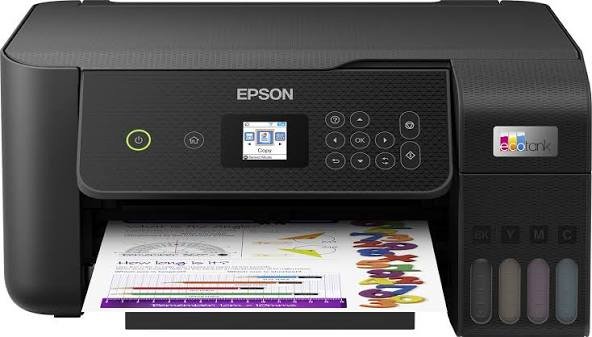
The Ultimate Epson EcoTank L3250 Maintenance Guide: Ink Refills, Printhead Unclogging, and Waste Ink Pad Fixes

Introduction
The Epson EcoTank L3250 (alongside sibling models like the L3210, L3251, and L3150) remains one of the most reliable and cost-effective ink tank printers for home offices, schools, and commercial print shops. Operating on Epson’s Micro Piezo heat-free technology and high-yield 003 series ink bottles, this printer is designed for high-volume printing at an ultra-low Cost-Per-Page (CPP).
However, even the most robust print engines require routine maintenance. Issues like missing colors, faint lines, ink clogging, or sudden service error codes can halt your daily workflow.
In this comprehensive guide, our technical team at Enlite Consumables breaks down step-by-step solutions for maintaining your Epson L3250, choosing the right refill ink, and fixing common performance hiccups.
Factory Direct Solution • OEM Capacity + Resettable IC
Looking for Reliable Epson C9345 (C12C934591) — Enlite C9345 Waste Ink Maintenance Box for EcoTank & WorkForce?
100% OEM-compatible for Epson EcoTank L8050 / L18050 / WF-7820 / WF-7840 / ST-C8000. Explore our Maintenance Boxes & Waste Ink Tanks catalog for wholesale pricing.
1. How to Fix Faint Lines and Clogged Printheads on the Epson L3250
One of the most frequent challenges faced by ink tank owners is print degradation—often appearing as white horizontal streaks, incorrect color output, or totally blank pages. This usually happens when the printer sits idle for extended periods, causing ink to dry inside the microscopic nozzles.
Step-by-Step Printhead Recovery Procedure:
- Run a Nozzle Check Pattern:Open your printer preferences on your computer, navigate to the Maintenance tab, and print a Nozzle Check. This diagnostic page indicates exactly which color channel (Cyan, Magenta, Yellow, or Black) is obstructed.
- Standard Head Cleaning Routine:If the check pattern shows broken lines, initiate a Head Cleaning cycle via the driver software.Pro-Tip: Allow the printer to rest for 10 to 15 minutes after the cleaning cycle. This rest period lets the trapped air bubbles settle inside the ink delivery tubes.
- Executing a Power Cleaning (The Advanced Fix):If consecutive standard cleanings fail to resolve the streak issue, perform a Power Cleaning. Because this process flushes a higher volume of ink through the system, run it only once to avoid premature waste ink pad saturation.
- Preventative Care:To prevent ink from congealing inside the Micro Piezo printhead, make it a habit to print at least one full-color test page every 5 to 7 days.
2. Choosing the Right Refill Ink: OEM vs. Premium Compatible 003 Ink Bottles
The Epson L3250 utilizes Epson 003 ink bottles (Dye-based Cyan, Magenta, Yellow, and Black). While original equipment manufacturer (OEM) ink delivers good results, high-volume users, stationery retailers, and copier repair workshops often seek cost-effective compatible alternatives to optimize operating margins.
What to Look For in High-Performance Compatible Refill Inks:
- Micro-Filtered Liquid Formulation: Premium compatible inks undergo multi-stage filtration to eliminate microscopic particulates, ensuring smooth fluid dynamics and zero nozzle clogging.
- Color Saturation & Gamut Accuracy: High-grade dye inks match OEM color density, producing rich black text and vibrant photo reproduction on both glossy photo paper and plain copy paper.
- Auto-Stop Keyed Nozzle Design: Modern compatible 003 bottles feature custom-keyed caps that fit seamlessly into the L3250 ink tank ports, preventing cross-color contamination and messy spills during refilling.
Economic Advantage: Utilizing certified, high-purity compatible bottle ink can lower total printing expenditure by up to 60% without compromising output fidelity or hardware longevity.
3. Resolving the “Service Required: Waste Ink Pad Counter Full” Error
When your Epson L3250 abruptly halts operation and displays alternating red flashing lights on the control panel, the printer has reached its internal waste ink limit.
Understanding the Waste Ink System:
Every time the L3250 powers on, charges ink, or undergoes printhead cleaning, a small portion of liquid ink is routed into an internal absorption sponge known as the Waste Ink Pad. To prevent physical ink overflow onto your office desk, Epson’s firmware locks the machine once the page-count algorithm reaches 100%.
How to Fix the Error Safely:
- Hardware Replacement: Unscrew the rear housing panel of the printer, slide out the saturated waste ink box, and install a fresh, high-absorption replacement pad assembly.
- Firmware/Counter Reset: Utilize an authorized counter reset utility to clear the error code from the printer’s mainboard memory and restore normal functionality.
Keeping replacement waste ink pads in stock is essential for commercial print centers and MPS providers to minimize equipment downtime.
Partner with Enlite for Premium Printing Consumables
At Enlite Consumables, we specialize in engineering high-yield, OEM-equivalent printing supplies for global distributors, repair workshops, and office equipment dealers. From compatible bottle inks and toner cartridges to drum units and spare parts, our factory-direct products deliver uncompromised quality and reliability.
Factory Direct B2B Supply • Waste Ink Maintenance Boxes & Chip Reset Solutions
Browse All 21 Factory SKUs →Recommended Compatible Consumables & Replacement Parts
Epson C9345 (C12C934591)OEM Capacity + Resettable IC
Enlite C9345 Waste Ink Maintenance Box for EcoTank & WorkForce
Compatible Models: Epson EcoTank L8050 / L18050 / WF-7820 / WF-7840 / ST-C8000
View Technical Specs →Factory Direct
T6714 / PXMB6 (C13T671400)High-Density Absorber + Chip
Enlite T6714 Waste Ink Maintenance Box with Smart IC Chip
Compatible Models: Epson WorkForce Pro WF-C8190 / WF-C8690 / WF-C878R / WF-C879R
View Technical Specs →Factory Direct
Canon MC-20 (0628C002)100% Canon PRO Chip Match
Enlite MC-20 Compatible Maintenance Cartridge Waste Ink Tank
Compatible Models: Canon imagePROGRAF PRO-1000 / PRO-500 Professional Printers
View Technical Specs →Factory Direct
RESETTER-WF-PROInstant Chip Recovery Tool
Enlite Smart Ink Cartridge & Maintenance Chip Resetter
Compatible Models: Epson WF-C8190 / WF-C8690 / WF-6093 / WF-8593 / PX-S7110P
View Technical Specs →Factory Direct
Explore Related Product Categories:Maintenance Boxes & Waste Ink Tanks →Chip Resetters & Spare Parts →All Compatible Ink Cartridges →
Technical & Wholesale Procurement FAQs
Q: How do I fix the "Maintenance Box Full" error on Epson EcoTank and WorkForce printers?
Replace the saturated waste ink tank (such as Epson C9345 or T6714/PXMB6) with a fresh Enlite compatible maintenance box containing a new IC chip, or reset the existing chip using an Enlite chip resetter only after replacing the internal absorbent cotton pads.
Q: Are Enlite C9345 and T6714 maintenance boxes plug-and-play with updated Epson firmware?
Yes. Enlite maintenance boxes feature upgraded smart chips tested against the latest Epson EcoTank (L8050/L18050) and WorkForce Pro (WF-C8190/C8690/C878R/C879R) firmware for instant recognition.
Q: What is the absorbency capacity of Enlite factory replacement maintenance boxes?
Enlite uses multi-layer high-density polymeric fiber pads engineered to match or exceed OEM fluid retention capacity, preventing waste ink leakage during heavy production runs.
Need Bulk Pricing, Custom OEM Packaging, or Model Matching?
Direct from Zhuhai Enlite Factory — ISO9001/ISO14001 certified consumables with 100% tested smart chips.