
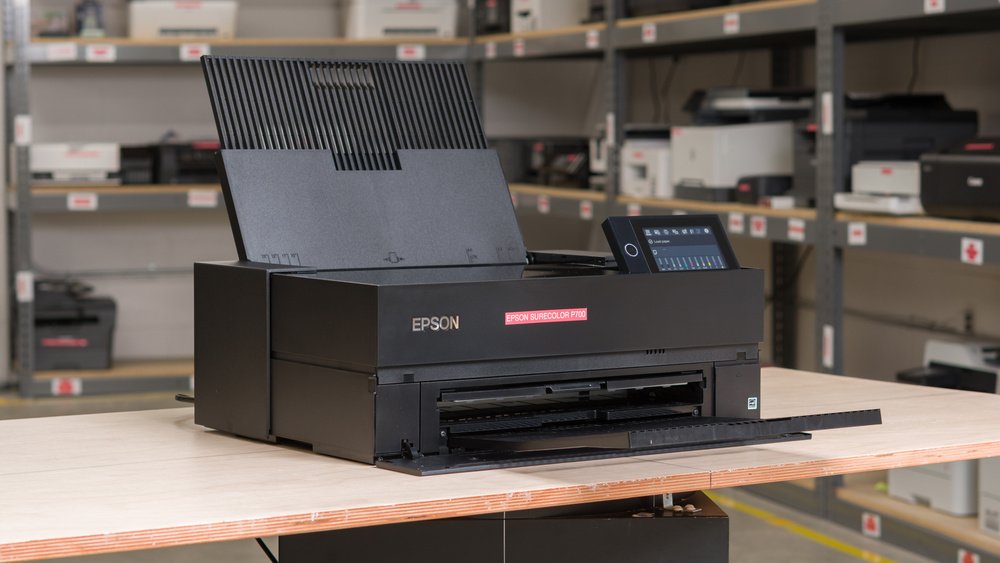
The Ultimate Epson SureColor P700 Maintenance Guide: UltraChrome PRO10 Ink, Nozzle Recovery, and Maintenance Box Fixes

Introduction
The Epson SureColor P700 is a benchmark 13-inch desktop professional photo printer, widely favored by commercial photography studios, fine art printmakers, and graphic design agencies. Built around Epson’s advanced 10-channel MicroPiezo AMC™ printhead and the revolutionary UltraChrome PRO10 pigment ink system, the P700 delivers museum-quality archival prints, deep Dmax black density, and an expanded color gamut without requiring black ink switching (Photo Black vs. Matte Black).
However, precise pigment ink technology requires strict maintenance. High-density pigment particles, if mismanaged, can lead to line banding, nozzle clogging, or sudden service interruptions during crucial printing deadlines.
In this technical guide, our expert engineering team at Enlite Consumables breaks down essential maintenance procedures, ink cartridge management, and maintenance box replacement strategies for the Epson P700.
1. How to Fix Banding and Prevent Clogged Nozzles on the Epson P700
Unlike standard dye-based desktop printers, the SureColor P700 uses heavy pigment inks. Pigment particles are suspended solids that can settle or dry in the micro-nozzles if the machine experiences long periods of inactivity or ambient humidity fluctuations.
Step-by-Step Nozzle Recovery Procedure:
- Perform a Nozzle Check Pattern:Do not guess which channel is misfiring. Navigate to Menu > Maintenance > Nozzle Check on the 4.3-inch touchscreen, and print a test sheet on plain paper. Inspect all 10 color channels (including Violet, Light Cyan, and Light Magenta).
- Targeted Printhead Cleaning:If white horizontal lines or missing color blocks appear, execute a Printhead Cleaning via the display menu.Pro-Tip: Clean only the affected nozzle pairs if prompted, and allow the printer to sit idle for 15 to 20 minutes post-cleaning. This dwell time lets trapped air bubbles dissolve back into the fluid stream.
- Executing a Power Cleaning (Use Sparingly):If two standard cleanings fail, run a Power Cleaning. Because pigment ink channels require higher pressure to purge stubborn dried clogs, this process consumes a noticeable percentage of ink and fills the maintenance box faster. Use it only as a last resort.
- Agitation Care for Inactive Printers:If your P700 has been sitting idle for over two weeks, gently shake newly unboxed ink cartridges before insertion, or perform a light print run to keep the pigment suspension uniform inside the dampers.
2. Optimizing Ink Consumption: Understanding UltraChrome PRO10 Ink Cartridges (T46Y Series)
The Epson P700 utilizes T46Y series individual ink cartridges (25ml capacity), featuring 10 dedicated channels including Violet ink for matching difficult blue/purple gamut range and dedicated Photo Black (PK) and Matte Black (MK) channels.
Key Factors for Managing High-Yield Pigment Ink Output:
- No-Switch Black Ink Channel Advantage: The P700 features dedicated lines for both Photo Black and Matte Black, eliminating the wasteful ink purging cycle that older generations required when switching media types.
- Carbon Black Mode Performance: When printing exhibition-grade monochrome prints, the printer deposits extra-fine Photo Black particles alongside Carbon Black mode. Ensure your custom ICC profiles are correctly mapped to prevent excess ink pooling on glossy paper stock.
- Smart Chip Recognition: Each T46Y cartridge relies on a precision cryptographic chip to monitor real-time fluid levels and piezoelectric pulse counts. High-quality compatible or remanufactured cartridges must feature updated IC chips to ensure seamless firmware handshakes and accurate ink level reporting.
Cost Optimization Tip: High-volume photo labs and framing workshops can significantly reduce Cost-Per-Print by using certified, archival-grade compatible pigment ink formulations that match OEM color density and lightfastness ratings.
3. Managing the Epson P700 Maintenance Box (C12C935711 / E-C9357)
Unlike budget consumer printers that store waste liquid in internal sponges, the Epson SureColor P700 utilizes a user-replaceable Maintenance Box (Part Number: C12C935711).
How the Waste Ink System Operates:
During automatic initialization, power cleanings, and borderless printing margin flushes, excess pigment ink is pumped into the maintenance box located on the rear-right side of the machine. The box contains high-absorption felt pads and an integrated microchip that tracks fluid saturation.
Step-by-Step Maintenance Box Replacement:
- Monitor Capacity Alerts: When the touchscreen displays “Maintenance Box Capacity Low”, order a replacement unit immediately to avoid stopping midway through a large-format photo print.
- Physical Swap: Turn off the printer power if recommended, open the rear maintenance compartment, unlatch the exhausted module, and slide in the new C12C935711 maintenance box until it clicks into place.
- No Software Reset Needed: Once a fresh module with a reset chip is installed, the P700 automatically recognizes the new unit and clears the service warning instantly.
Keeping spare maintenance boxes in stock is a fundamental requirement for commercial studios to guarantee zero operational downtime.
Partner with Enlite for Professional Printing Supplies
At Enlite Consumables, we understand the rigorous demands of professional photo printing, commercial copier maintenance, and high-yield MPS operations. From premium compatible inks and toner cartridges to drum units, fusers, and maintenance components, our products are engineered to OEM-level tolerances to keep your business running profitably.